
A pdf to image converter is a very common tool used by students, designers, office workers, and content creators. It helps turn PDF documents into image formats like JPG or PNG.
But many people notice something confusing: the output image quality is not always the same. Sometimes it looks sharp, sometimes blurry, and sometimes even distorted.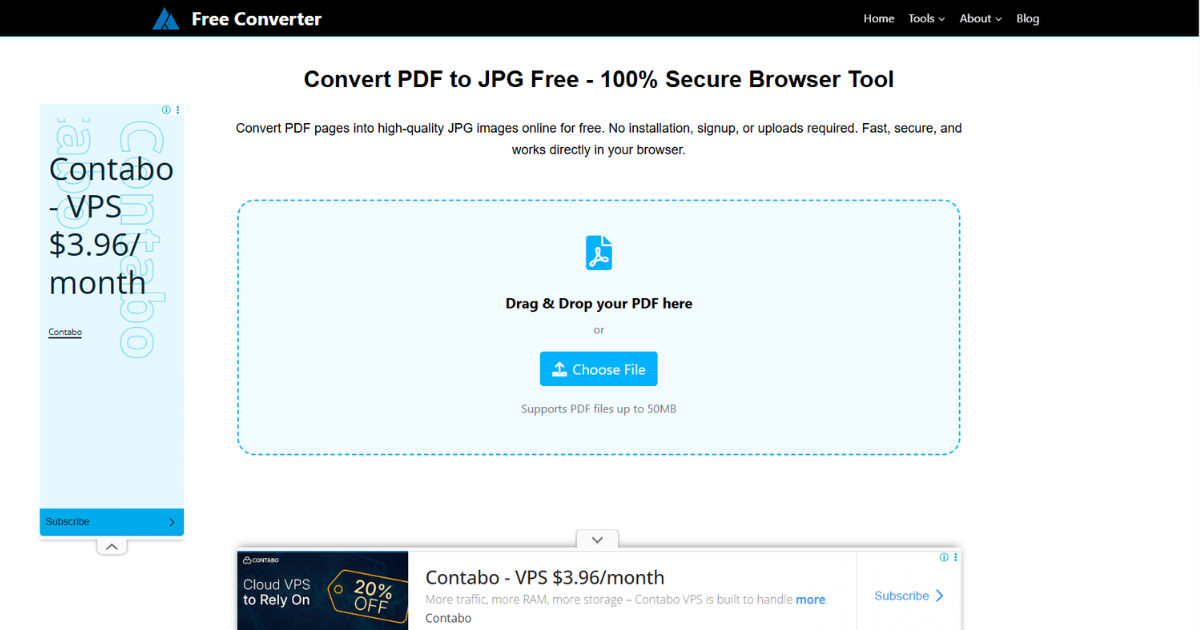
In this guide, we will explain in detail what affects the quality of a pdf to image converter output. You will learn technical and practical factors in a very simple way. This article is designed for 12th-grade level readers, so everything is easy to understand while still being detailed.
How a pdf to image converter Works
A pdf to image converter works by taking each page of a PDF and converting it into a raster image. This means text, graphics, and images are all turned into pixels.
A pdf to image converter does not simply “copy” the page. Instead, it renders the page like a virtual printer and then saves the result as an image file. This rendering process is where most quality differences begin.
Different pdf to image converter tools use different rendering engines, which directly affects clarity, sharpness, and color accuracy.
Resolution (DPI) and Its Impact on Quality
One of the biggest factors affecting a pdf to image converter output is DPI, which stands for “dots per inch.”
Higher DPI means more detail.
A pdf to image converter set at:
- 72 DPI → Low quality (good for previews)
- 150 DPI → Medium quality
- 300 DPI → High quality (print quality)
- 600 DPI → Very high quality (professional use)
If the pdf to image converter uses low DPI, text becomes blurry and images lose detail. This is why DPI settings are one of the first things to check.
A good pdf to image converter always allows manual DPI control.
Image Compression Settings
Compression is another major factor in a pdf to image converter.
There are two types:
- Lossy compression (JPG)
- Lossless compression (PNG, TIFF)
A pdf to image converter using heavy compression reduces file size but also reduces quality. This leads to:
- Blurry text
- Pixelation
- Color banding
On the other hand, a pdf to image converter using lossless formats preserves every detail but creates larger files.
Choosing the right balance is important depending on your use case.
Vector vs Raster Content in PDF
A PDF can contain two types of content:
- Vector (sharp lines, text, shapes)
- Raster (images like photos)
A pdf to image converter must convert vector data into pixels. If the converter is not advanced, it may not handle this properly.
Good vector rendering keeps text sharp even when zoomed. Poor pdf to image converter tools make text look fuzzy.
This is why professional converters produce much clearer results compared to free basic tools.
Color Profile and Accuracy
Color management is another important factor in a pdf to image converter.
PDF files may use different color profiles like:
- RGB (for screens)
- CMYK (for printing)
A pdf to image converter that does not handle color profiles correctly may produce:
- Washed-out colors
- Too dark images
- Incorrect shades
Professional pdf to image converter tools maintain color consistency by properly converting profiles during rendering.
Font Rendering and Anti-Aliasing
Fonts play a major role in how sharp a converted image looks.
A pdf to image converter uses a process called anti-aliasing to smooth edges of text.
If anti-aliasing is poor:
- Text looks jagged
- Edges appear rough
- Small fonts become unreadable
A high-quality pdf to image converter applies strong font rendering techniques to ensure smooth and readable text.
Page Complexity and Design Elements
Not all PDF pages are simple. Some include:
- Tables
- Charts
- Images
- Layers
- Transparent elements
A pdf to image converter may struggle with complex layouts.
For example:
- Overlapping elements may shift
- Shadows may not render correctly
- Transparent layers may flatten incorrectly
The more complex the page, the more powerful the pdf to image converter needs to be.
Software Rendering Engine Quality
Different tools use different engines. This greatly impacts output quality in a pdf to image converter.
Common rendering engines include:
- Poppler
- Ghostscript
- Adobe PDF engine
- Custom proprietary engines
A weak engine may skip details or simplify rendering. A strong pdf to image converter engine preserves every detail exactly as seen in the PDF.
This is one of the biggest reasons why two converters produce different results from the same file.
Output Image Format Selection
The format you choose in a pdf to image converter matters a lot.
JPG Format
- Smaller file size
- Some quality loss
- Good for photos
PNG Format
- No quality loss
- Larger file size
- Best for text and graphics
TIFF Format
- Professional printing
- Very high quality
- Very large files
A pdf to image converter that automatically selects JPG may reduce quality even if the original PDF is sharp.
Scaling and Zoom Level During Conversion
A pdf to image converter often allows scaling or zoom before conversion.
If the scale is too low:
- Image becomes blurry
- Text loses sharpness
If scale is too high:
- File becomes large
- Processing takes longer
The best pdf to image converter uses optimal scaling to maintain balance between clarity and performance.
Hardware Performance of the Device
Many people do not realize that system hardware affects a pdf to image converter.
Important hardware factors:
- CPU speed
- RAM capacity
- GPU acceleration
A weak system may force the pdf to image converter to reduce processing quality or speed, especially for large PDFs.
High-performance systems allow better rendering accuracy and smoother output.
Page Size and Aspect Ratio Handling
PDFs come in different sizes like A4, letter, or custom dimensions.
A pdf to image converter must preserve aspect ratio correctly.
If not:
- Images may stretch
- Text alignment may shift
- Layout may break
A good pdf to image converter always preserves original page geometry without distortion.
Transparency and Layer Flattening
Some PDFs contain transparent layers. A pdf to image converter must flatten these layers into a single image.
Poor flattening causes:
- Visible artifacts
- Dark patches
- Missing elements
Advanced pdf to image converter tools handle transparency smoothly, ensuring clean final output.
Font Embedding Issues in PDF
If fonts are not embedded in a PDF, a pdf to image converter may substitute them.
This can lead to:
- Different font styles
- Spacing issues
- Reduced readability
A high-quality pdf to image converter tries to match missing fonts accurately or renders them using fallback methods.
Software Settings and User Configuration
Most people ignore settings, but they are critical in a pdf to image converter.
Important settings include:
- DPI control
- Compression level
- Color mode
- Page range selection
Incorrect settings in a pdf to image converter can drastically reduce output quality even if the software is powerful.
File Corruption or PDF Quality Itself
Sometimes the issue is not the pdf to image converter, but the PDF itself.
A low-quality PDF may contain:
- Low-resolution images
- Broken fonts
- Scanned pages
Even the best pdf to image converter cannot improve a poor-quality source file.
OCR Processing Impact (Scanned PDFs)
Scanned PDFs require OCR (Optical Character Recognition).
A pdf to image converter with OCR may:
- Improve text recognition
- But slightly reduce image sharpness during processing
Balancing OCR and image clarity is important in advanced pdf to image converter tools.
Network-Based vs Offline Converters
Online tools and offline software behave differently.
An online pdf to image converter may:
- Compress files to save bandwidth
- Reduce resolution
- Limit processing power
An offline pdf to image converter usually provides:
- Higher quality
- More control
- Faster processing
This difference can significantly affect final image output.
Common Mistakes That Reduce Quality
Many users accidentally reduce quality when using a pdf to image converter.
Common mistakes include:
- Using low DPI settings
- Choosing JPG instead of PNG
- Ignoring scaling options
- Using default compression
- Uploading low-quality PDFs
Avoiding these mistakes improves results in any pdf to image converter.
Tips to Improve Output Quality
Here are simple tips to get better results from a pdf to image converter:
- Always use 300 DPI or higher
- Prefer PNG for text-heavy pages
- Use high-quality source PDFs
- Avoid unnecessary compression
- Check font embedding before conversion
A properly configured pdf to image converter can produce near-print-quality images.
Future Improvements in Conversion Technology
Modern pdf to image converter tools are improving with:
- AI-based rendering
- Better font reconstruction
- Faster GPU processing
- Smart compression systems
In the future, a pdf to image converter will likely produce even more accurate and sharper outputs with less user effort.
Conclusion
The quality of a pdf to image converter output depends on many factors working together. These include DPI settings, compression methods, rendering engines, color profiles, font handling, and even hardware performance. Even small changes in configuration can dramatically affect the final image result.
A high-quality pdf to image converter ensures that text remains sharp, images stay clear, and layouts are preserved exactly as in the original PDF. On the other hand, poor settings or weak software can lead to blurry, distorted, or inaccurate results.
Understanding these factors helps users choose the right settings and tools for their needs. Whether you are a student converting notes or a professional preparing documents, mastering the use of a pdf to image converter will always give you better visual results and more control over your output.